Drugs and Fluids
Drug Boluses
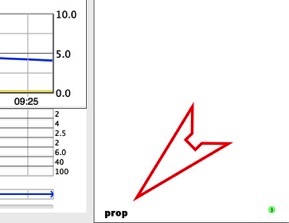
Drug bolus doses appear on the chart as a coloured syringe, with the dose in the drug chart. To change the time of the drug bolus, drag the syringe to the correct time.
Entering a Drug
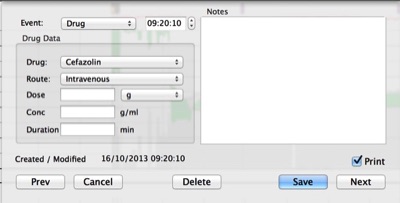
There are multiple methods of entering a drug bolus
- Choose Drug, Induction or Reversal from the Events menu, and enter the relevant details. You can also change the time of the drug in this menu. If you don’t want the event to print, you can unclick the Print checkbox.
- Click the Drug, Induction or Reversal Icon in the toolbar.
- Double-click at the desired time on one of the trend graphs to open the events sheet, choose Drug and then enter the relevant data.
- Double-click at the desired time on the relevant line of the drug graph to open the drug sheet, and enter the other data.
- Start typing the name of the drug when the recording window is in front.
Once you have typed enough letters for Monitor to recognise the drug you are giving, the Drug sheet will open with the drug chosen, and the dose box selected. You just need then to type the dose and press return.
You can see the letters you are typing on the bottom left side of the digital chart. If you stop typing for more than 1.5 seconds the typing will be cleared.
You can enter a duration for a drug bolus, if you are giving it as a slow infusion.
You can edit the drugs in the drug library in the Preferences dialog.
Drug Infusions
If you are just giving a slow bolus, you can enter the drug as a bolus and enter a duration. For a more complex infusion you can start a drug infusion
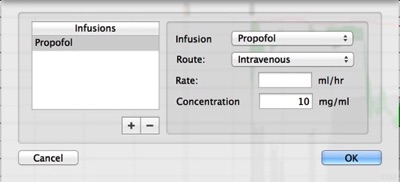
Entering an Infusion
You can either:
- Choose Add Infusion from the Data menu
- Start typing the name of the drug when the recording window is in front.
If the drug can only be given as an infusion, once you have typed enough letters for Monitor to recognise the drug you are giving, the Infusion sheet will open with the drug chosen.
Alternatively, if you type the name of the drug in capitals, Monitor will open the Infusion rather than the Drugs sheet.
To change the rate of an infusion, double-click on the infusion bar at the desired time and enter a new rate. Alternatively, if you are recording, you can type the name of the drug in capitals. The new rate will be entered at the time that the Infusion sheet opened.
Lines
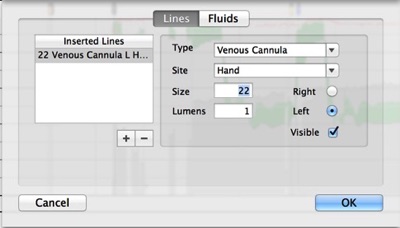
You can enter a new line by choosing Add Line from the Data menu.
If the Lines sheet is open, you can add more lines by clicking the + button.
If you don’t want the line to be visible on the screen or printout, you can uncheck the Visible checkbox.
If the type of line or site that you want is not available, you can type it into the popup.
Fluids
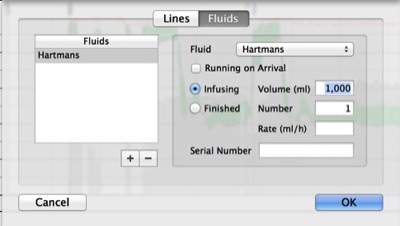
Adding a Fluid
Either
- Choose Add Fluid from the Data menu. If there is no current line, Monitor will automatically add a line. You can edit this by clicking on the Lines tab. If you have entered one or more lines, the fluid will be entered into lumen 1 of line 1. If there is a fluid currently infusing on this lumen, it will be stopped.
- Double-click on the fluid chart at the relevant time on the relevant line / lumen. If you enter a fluid before a current fluid, the new fluid will be entered as being finished, just before the start of the next fluid on that lumen.
If you want to enter multiple bags of fluid at once, for example 10 units of cryoprecipitate, you can enter the number of units in the number field.
You can change the start and finish times of a fluid by dragging the left or right edges of the fluid bar. If a fluid has not finished, the right side will be shown as an arrow, and cannot be changed. If a fluid has finished, you can move the entire fluid bar by dragging from the middle of the fluid bar.